Fixing Your Slow Laptop Without Paying a Pro
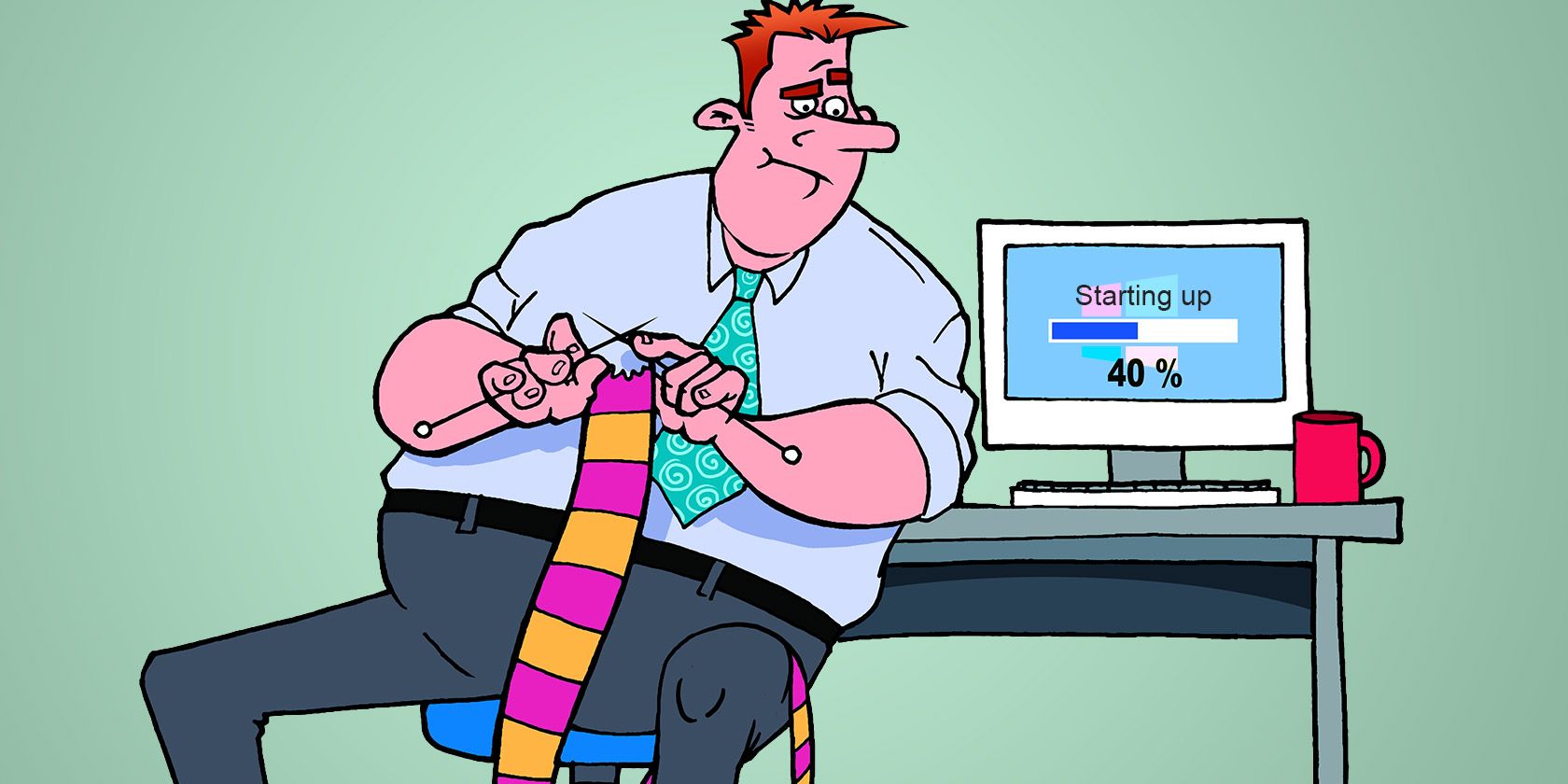
Is your laptop feeling more like a paperweight than a powerhouse? Does it take an eternity to load a simple webpage, and do programs freeze up at the most inconvenient times? You're not alone! A sluggish laptop can be incredibly frustrating, especially when you rely on it for work, school, or simply staying connected. But before you resign yourself to buying a new machine or spending a fortune on professional help, know that there are many things you can do to breathe new life into your old laptop yourself.
The frustration of a slow laptop can seep into all aspects of life. Deadlines get missed, leisure time turns into exasperation, and that once-reliable machine becomes a source of constant annoyance. Maybe you’ve even tried a few quick fixes you found online, only to be disappointed when they don't deliver lasting results. The prospect of tackling the problem yourself can feel daunting, but the reward is a faster, more responsive laptop without the hefty bill from a technician.
This guide is designed to empower you to take control of your laptop's performance and optimize it for speed and efficiency – all without needing to break the bank. We'll explore a range of easy-to-follow tips and techniques, from simple software tweaks to hardware upgrades, that can dramatically improve your laptop's performance and extend its lifespan.
In this comprehensive guide, we'll uncover hidden programs hogging resources, show you how to free up valuable storage space, guide you through defragging your hard drive (if you have one), and explain the benefits of upgrading your RAM or switching to a solid-state drive (SSD). We'll also delve into managing startup programs, cleaning up your browser, and keeping your operating system up-to-date. By the end, you'll have the knowledge and tools to diagnose the root causes of your laptop's slowdown and implement effective solutions to get it running like new again. Whether it's optimizing Windows or just getting rid of bloatware, we have you covered.
Identify Resource-Hungry Programs
The first step in reviving a slow laptop is identifying the culprits that are hogging its resources. This is where the Task Manager (Windows) or Activity Monitor (mac OS) becomes your best friend. These tools provide a real-time view of which programs and processes are consuming the most CPU, memory, and disk space. The goal is to pinpoint any unexpected resource hogs that are silently slowing down your system. I remember one time, my laptop was acting up. I was so annoyed that my laptop took so long to load even just a single image. I thought it had a virus, so I got it checked by a technician. They didn't find a virus, but they found a lot of background apps that I was not even using. I never knew how much space those apps took up. So, make sure to check the Task Manager or the Activity Monitor on your computer.
To access the Task Manager on Windows, press Ctrl+Shift+Esc. On mac OS, open Activity Monitor from the Utilities folder within Applications. Once open, sort the processes by CPU, Memory, and Disk usage to see which applications are the most demanding. Are there any programs you don't recognize or rarely use consuming significant resources? These are prime candidates for closing or uninstalling. Even programs that you frequently use might be running in the background when you don't need them to. For instance, cloud storage services like Dropbox or Google Drive can constantly sync files, consuming network bandwidth and CPU cycles. Consider pausing syncing when you're not actively working with those files. Another common culprit is antivirus software. While essential for security, some antivirus programs can be quite resource-intensive, especially during scans. Schedule scans for off-peak hours or explore lighter-weight alternatives. By carefully monitoring and managing resource-hungry programs, you can free up valuable system resources and significantly improve your laptop's responsiveness.
Free Up Disk Space
A full or nearly full hard drive can significantly impact your laptop's performance. When your drive is crammed with files, the operating system has less space to store temporary files and perform essential functions, leading to slowdowns and sluggishness. Freeing up disk space is therefore a crucial step in optimizing your laptop's performance. One of the earliest computer slowdown issues traced back to the limitations of early hard drives. As operating systems evolved, they demanded more storage for temporary files and virtual memory. When a hard drive neared its capacity, the system struggled to manage these essential functions, resulting in noticeable slowdowns. This issue became even more pronounced with the rise of graphical user interfaces (GUIs) and multimedia content, which required significantly more storage space compared to earlier text-based systems.
Start by deleting unnecessary files, such as old documents, photos, videos, and downloads. Use the Disk Cleanup tool in Windows to remove temporary files, system caches, and other junk data. On mac OS, use the Storage Management tool to identify and remove large files and unused applications. Consider moving large files, such as videos and photos, to an external hard drive or cloud storage service to free up space on your laptop's internal drive. Uninstall programs that you no longer use. Many laptops come pre-loaded with bloatware, which are unnecessary programs that consume disk space and system resources. Uninstall these programs to improve performance. Regularly emptying the Recycle Bin (Windows) or Trash (mac OS) is another simple way to free up disk space. These folders can accumulate a significant amount of deleted files over time, so make sure to empty them regularly. By taking these steps, you can free up valuable disk space and significantly improve your laptop's performance.
Defragment Your Hard Drive (If Applicable)
Defragmentation is the process of reorganizing data on a hard drive to improve its efficiency. Over time, files can become fragmented, meaning that parts of the file are stored in different locations on the drive. This can slow down access times as the hard drive has to work harder to retrieve all the pieces of a file. The myth surrounding defragmentation often portrays it as a magical fix-all for slow computers. While it can improve performance in certain cases, it's not a universal solution and has become less relevant with modern storage technologies like SSDs. One common misconception is that defragmentation is necessary for all types of storage devices. In reality, defragmenting an SSD can actually shorten its lifespan due to the limited number of write cycles. Additionally, the benefits of defragmentation are often overstated. While it can improve file access times, the performance gains may not be noticeable in all situations, especially on newer computers with faster processors and more RAM.
If your laptop has a traditional hard drive (HDD), defragmenting it can improve performance. However, if your laptop has a solid-state drive (SSD), defragmenting is not necessary and can actually reduce the lifespan of the drive. Windows has a built-in defragmentation tool that you can use to defragment your hard drive. To access the tool, search for "defragment" in the Start menu and select "Defragment and Optimize Drives." The tool will analyze your hard drive and recommend whether or not to defragment it. If defragmentation is recommended, run the tool to defragment your drive. The process can take several hours, so it's best to run it when you're not using your laptop. Defragmentation can improve performance by reorganizing files on the hard drive and making it easier for the system to access them. However, it's important to note that defragmentation is not a substitute for other optimization techniques, such as freeing up disk space and uninstalling unnecessary programs.
Upgrade Your RAM (If Possible)
Random Access Memory (RAM) is your computer's short-term memory. It's used to store data that the computer is actively using. When your laptop doesn't have enough RAM, it has to rely on the hard drive for temporary storage, which is much slower. Upgrading your RAM can significantly improve performance, especially if you tend to run multiple programs at the same time or work with large files. One hidden secret of maximizing RAM performance lies in understanding dual-channel memory. Most modern laptops support dual-channel memory, which allows the CPU to access two memory modules simultaneously, effectively doubling the memory bandwidth. To take advantage of dual-channel memory, you need to install RAM modules in pairs, ensuring that they are the same size, speed, and type. For example, if you want to upgrade your laptop to 8GB of RAM, it's better to install two 4GB modules instead of a single 8GB module. Additionally, the type of RAM you use can also impact performance. Older laptops may use DDR3 RAM, while newer laptops use DDR4 RAM, which is faster and more energy-efficient.
Before upgrading your RAM, check your laptop's specifications to see what type of RAM it supports and the maximum amount of RAM it can handle. You can find this information in your laptop's manual or on the manufacturer's website. Once you know what type of RAM you need, you can purchase it from an online retailer or a local computer store. Installing RAM is a relatively simple process, but it's important to follow the instructions carefully. Turn off your laptop and unplug it from the power outlet. Open the RAM compartment on the bottom of the laptop. Remove the old RAM modules and insert the new ones, making sure they are properly seated. Close the RAM compartment and turn on your laptop. The new RAM should be automatically detected by the system. Upgrading your RAM is one of the most effective ways to improve your laptop's performance, especially if you're running multiple programs or working with large files.
Consider a Solid-State Drive (SSD)
Switching from a traditional hard drive (HDD) to a solid-state drive (SSD) is arguably the single biggest upgrade you can make to improve your laptop's performance. SSDs use flash memory to store data, which is much faster than the spinning platters of an HDD. This results in significantly faster boot times, program loading times, and overall system responsiveness. A common misconception is that SSDs are only beneficial for high-end laptops or gaming rigs. In reality, even older laptops can experience a dramatic performance boost by switching to an SSD. The difference in speed is so noticeable that it can make an old laptop feel like a brand-new machine. Additionally, SSDs are more durable and reliable than HDDs, as they have no moving parts. This makes them less susceptible to damage from drops or vibrations.
Replacing your laptop's hard drive with an SSD is a relatively simple process, but it does require some technical knowledge. First, you'll need to purchase an SSD that is compatible with your laptop. Check your laptop's specifications to see what type of drive it supports and the maximum capacity it can handle. Once you have the SSD, you'll need to clone your existing hard drive to the SSD. This will copy all of your data, including your operating system, programs, and files, to the new drive. There are several software programs available that can help you clone your hard drive. Once the cloning process is complete, you can remove the old hard drive and install the SSD in its place. Boot up your laptop and it should boot from the SSD. The improvement in performance should be immediately noticeable. Switching to an SSD is a worthwhile investment that can breathe new life into an old laptop.
Manage Startup Programs
Many programs are configured to automatically start when you turn on your laptop. These startup programs can consume system resources and slow down the boot process. Managing startup programs is therefore an important step in optimizing your laptop's performance. One of the most common reasons for slow startup times is the accumulation of unnecessary startup programs. Many applications, especially those that are bundled with software or downloaded from the internet, automatically add themselves to the startup list without the user's knowledge. These programs can consume system resources and slow down the boot process, even if they are not actively being used. To prevent this, it's important to regularly review and manage your startup programs.
Disable Unnecessary Startup Programs
To disable unnecessary startup programs in Windows, open the Task Manager (Ctrl+Shift+Esc) and click on the "Startup" tab. This tab shows a list of programs that are configured to start when you turn on your laptop. Disable any programs that you don't need to start automatically. Be careful not to disable essential system programs, such as antivirus software. In mac OS, open System Preferences and click on "Users & Groups." Select your user account and click on the "Login Items" tab. This tab shows a list of programs that are configured to start when you log in to your account. Disable any programs that you don't need to start automatically. Disabling unnecessary startup programs can significantly improve your laptop's boot time and overall performance.
Clean Up Your Browser
Your web browser can also be a source of slowdowns. Over time, your browser can accumulate a lot of temporary files, cookies, and extensions, which can consume system resources and slow down browsing performance. Cleaning up your browser is therefore an important step in optimizing your laptop's performance. Here are some fun facts about browser performance. Did you know that the number of browser extensions you have installed can significantly impact your browsing speed? Each extension adds overhead to your browser, consuming memory and CPU resources. A study found that having more than 10 extensions installed can slow down browsing performance by as much as 50%. Additionally, the type of websites you visit can also affect your browser's performance. Websites with a lot of multimedia content, such as videos and animations, can be more resource-intensive than simpler text-based websites. Regularly clearing your browser's cache and cookies can help improve performance and protect your privacy.
Keep Your Operating System Up-to-Date
Keeping your operating system up-to-date is crucial for maintaining your laptop's performance and security. Updates often include performance improvements, bug fixes, and security patches that can address known issues and vulnerabilities. To keep your operating system up-to-date, enable automatic updates in Windows or mac OS. This will ensure that your system is always running the latest version of the operating system. Automatic updates are enabled by default in most cases, but it's a good idea to check and make sure they are enabled. In Windows, go to Settings > Update & Security > Windows Update. In mac OS, go to System Preferences > Software Update. Regularly installing updates can help improve your laptop's performance, security, and stability.
How to Reinstall Your Operating System
If all else fails, reinstalling your operating system can be a drastic but effective way to revive a slow laptop. This process will erase all of your data and programs, so it's important to back up your files before proceeding. Reinstalling your operating system essentially gives you a fresh start, removing any accumulated clutter, bloatware, and corrupted files that may be contributing to the slowdown. There are several ways to reinstall your operating system. You can use the built-in recovery options in Windows or mac OS, or you can create a bootable USB drive with the operating system installation files. The process can take several hours, so it's best to do it when you have plenty of time. After reinstalling your operating system, you'll need to reinstall your programs and restore your files from your backup. While reinstalling your operating system can be a time-consuming process, it can often resolve even the most stubborn performance issues.
What If My Laptop Is Still Slow?
If you've tried all of the above steps and your laptop is still slow, there may be a more serious underlying problem. In some cases, the slowdown could be caused by a hardware issue, such as a failing hard drive or a faulty memory module. It could also be caused by a virus or malware infection that is not being detected by your antivirus software. If you suspect a hardware issue, you may need to take your laptop to a professional repair shop for diagnosis and repair. If you suspect a virus or malware infection, you can try running a more thorough scan with a reputable antivirus program or anti-malware tool. If you're still unable to resolve the issue, it may be time to consider upgrading to a new laptop.
10 Quick Fixes for a Slow Laptop
Here's a list of 10 quick fixes you can try to speed up your slow laptop:
- Restart your laptop.
- Close unnecessary programs.
- Free up disk space.
- Defragment your hard drive (if applicable).
- Upgrade your RAM (if possible).
- Manage startup programs.
- Clean up your browser.
- Keep your operating system up-to-date.
- Scan for viruses and malware.
- Run a system performance diagnostic tool.
Question and Answer
Here are some frequently asked questions about fixing a slow laptop:
Q: How often should I defragment my hard drive?
A: If you have a traditional hard drive (HDD), you should defragment it every few months. If you have a solid-state drive (SSD), you don't need to defragment it.
Q: How much RAM do I need?
A: The amount of RAM you need depends on how you use your laptop. If you primarily use it for basic tasks like browsing the web and writing documents, 4GB of RAM may be sufficient. However, if you run multiple programs at the same time or work with large files, 8GB or more of RAM is recommended.
Q: Is it safe to disable startup programs?
A: It is generally safe to disable startup programs, but be careful not to disable essential system programs, such as antivirus software.
Q: How do I know if my laptop has a virus?
A: Signs that your laptop may have a virus include slow performance, unusual error messages, and unexpected pop-up windows. If you suspect that your laptop has a virus, run a scan with a reputable antivirus program.
Conclusion of Fixing Your Slow Laptop Without Paying a Pro
Reviving a slow laptop doesn't have to be a daunting or expensive task. By following the tips and techniques outlined in this guide, you can diagnose the root causes of your laptop's slowdown and implement effective solutions to get it running like new again. From identifying resource-hungry programs and freeing up disk space to defragging your hard drive and upgrading your RAM, there are many things you can do to optimize your laptop's performance without breaking the bank. Remember to manage startup programs, clean up your browser, and keep your operating system up-to-date for optimal results. With a little patience and effort, you can breathe new life into your old laptop and enjoy a faster, more responsive computing experience. Happy optimizing!
Post a Comment for "Fixing Your Slow Laptop Without Paying a Pro"